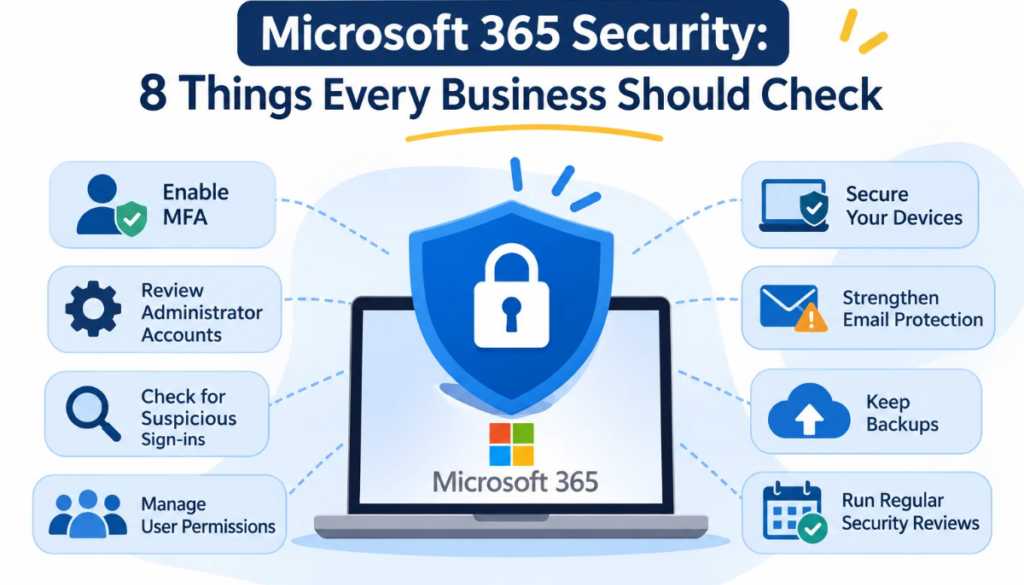
Microsoft 365 Security: 8 Things Every Business Should Check
Microsoft 365 runs email, files, meetings and identity for millions of businesses. That makes it a prime target. The good news: most Microsoft 365 breaches don’t come from clever hacking. They come from settings nobody reviewed, accounts nobody remembered, and warnings nobody saw.
Here are eight areas every business should check, whether you have five users or five hundred. You can start on most of them today.
- Multi-Factor Authentication (MFA) for Everyone
A stolen password is the most common way into a Microsoft 365 tenant. MFA is the single most effective barrier against it.
What to check:
- Is MFA enforced for every user, not just “most” users? One unprotected account is enough.
- Are you using Conditional Access policies or Security Defaults to require it, rather than relying on staff to opt in?
- Have you moved away from SMS codes toward the Microsoft Authenticator app or passkeys?
- Are legacy authentication protocols (older email clients that can’t do MFA) blocked? Attackers love them because they bypass MFA entirely.
- Administrator Accounts
Admin accounts hold the keys to your whole environment, so they deserve the tightest controls.
What to check:
- How many Global Administrators do you have? Aim for as few as practical, with at least two so you’re never locked out.
- Do admins use separate admin accounts, rather than their everyday mailbox, for administrative work?
- Is MFA mandatory for every admin, with phishing-resistant methods where possible?
- Are roles assigned on a least-privilege basis? Someone who manages billing doesn’t need to be a Global Admin.
- Do you have emergency “break-glass” accounts, stored securely and monitored for any use?
- Suspicious Sign-In Activity
Attackers who get a password often try it from unusual places or at unusual times. If you never look at sign-in logs, you’ll never see it happening.
What to check:
- Review Entra ID sign-in logs and risky sign-in reports for logins from unexpected countries, impossible travel, or unfamiliar devices.
- Set up alerts for risky sign-ins, new MFA registrations and password resets on admin accounts.
- Check for unfamiliar inbox rules, especially ones that forward or hide email. This is a classic sign of a compromised mailbox.
- Block sign-ins from countries where you have no staff or customers.
- User Permissions and Access
Over time, access piles up. People change roles, projects end, and nobody removes old permissions. The result is a tenant where far too many people can see far too much.
What to check:
- Do staff only have access to the SharePoint sites, Teams and mailboxes they actually need?
- Are “Anyone with the link” sharing links restricted or set to expire?
- Is external sharing and guest access reviewed regularly, with old guest accounts removed?
- Do you have a clear joiner, mover and leaver process, so that departing staff lose access the same day?
- Are third-party apps and OAuth consents reviewed? Users can grant apps access to company data with a single click.
- Device Security
A secure Microsoft 365 account on an insecure laptop is still a risk. Devices are where sessions, tokens and files end up.
What to check:
- Do you know which devices are accessing company data, and which are personal versus company-owned?
- Are devices enrolled in Microsoft Intune (or another management tool) with encryption, screen locks and OS updates enforced?
- Does Conditional Access require a compliant or managed device before allowing access to sensitive data?
- Is endpoint protection, such as Microsoft Defender, installed and healthy on every device?
- Can you remotely wipe a lost or stolen phone or laptop?
- Email Protection
Email remains the number one way attackers reach your people, through phishing, invoice fraud and impersonation of executives or suppliers.
What to check:
- Are anti-phishing, Safe Links and Safe Attachments policies turned on (available through Defender for Office 365)?
- Have you set up SPF, DKIM and DMARC for your domain, so criminals can’t easily send email pretending to be you?
- Is automatic external forwarding blocked?
- Do external emails carry a visible warning banner?
- Do staff know how to report a suspicious message with one click, and do they get regular phishing awareness training?
- Backups and Recovery
A common misunderstanding is that Microsoft backs up your data for you. Microsoft keeps the service running, but under the shared responsibility model, protecting your data from accidental deletion, ransomware, malicious insiders or account compromise is up to you.
What to check:
- Do you have a third-party backup for Exchange Online, SharePoint, OneDrive and Teams?
- Do you know your retention settings, and how long deleted items can actually be recovered?
- Have you tested a restore recently? A backup you’ve never tested is a hope, not a plan.
- Are backups stored separately from your main tenant and protected by their own access controls?
- Regular Security Reviews
Security isn’t a one-off project. Staff change, features change and threats change. The businesses that stay safe are the ones that look regularly.
What to check:
- Do you review Microsoft Secure Score at least quarterly and act on the recommendations?
- Is there a scheduled review of admin roles, guest users, licences, sharing settings and Conditional Access policies?
- Do you have an incident response plan that says who does what if an account is compromised?
- Is someone clearly responsible for Microsoft 365 security, whether an internal person or an IT partner?
A Simple Place to Start
If eight areas feels like a lot, begin with the three that reduce risk the fastest:
- Enforce MFA for everyone and block legacy authentication.
- Tighten admin accounts.
- Turn on email protection and set up SPF, DKIM and DMARC.
Then work through the rest and schedule your first formal review.
How RINCS IT Can Help
We help businesses get more from Microsoft 365 safely. From security health checks and MFA rollouts to device management, email protection, backup and ongoing IT support, RINCS IT can review your setup, fix the gaps and keep it that way.
Want to know where your Microsoft 365 setup stands? Get in touch with RINCS IT for a Microsoft 365 security review.